Rocket gifts explained: levels, boxes and the launch
A rocket turns a room's gifting into a shared goal. A beat-by-beat look at the fuel icon, the launch, the top bar and the reward boxes, with real specs from the Rocket Launches collection.
svgastore team5 min read

Most gifts are a private exchange between two people that the rest of the room happens to watch. A rocket turns gifting into a shared project: every gift adds fuel, the meter fills in public, and when it launches everyone present has a reason to have been there. That makes the rocket one of the few features where the animation is the rulebook, so every state has to read at a glance.
How a rocket event runs
The rules are yours to set, but a typical rocket event moves through six beats:
Fuel. Gifts sent in the room add to a meter, shown as a small rocket icon near the top of the room.
Ready. As the meter nears full, the icon intensifies and the launch file is fetched in the background.
Launch. The rocket plays over the room.
Announce. A top bar tells the room, or the whole app, that this room has launched.
Reward. Reward boxes appear for the people present to open or claim.
Level up. The meter resets at the next level with a higher target, until the room reaches the top level for the period.
Targets, reset times and who qualifies for a reward are business decisions. The animation's job is to make each beat obvious to someone who walked in ten seconds ago.
The files, beat by beat
The Rocket Launches collection has 56 files, all SVGA, from 7.2 KB to 1.51 MB with a median of 120 KB. This is how the main pieces map to the sequence:
| Beat | File | Canvas | fps | Length | Size |
|---|---|---|---|---|---|
| Fuel | Rocket Small Level 1 | 128×128 | 15 | 4 s | 7.2 KB |
| Fuel | Rocket Small Level 5 | 128×128 | 15 | 4 s | 10 KB |
| Launch | Rocket 1 | 200×267 | 10 | 5 s | 622 KB |
| Launch | Rocket 3 | 200×267 | 10 | 5 s | 861 KB |
| Launch | Rocket 3 II | 164×280 | 20 | 5 s | 1.51 MB |
| Launch | Room Rocket | 175×237 | 10 | 5 s | 696 KB |
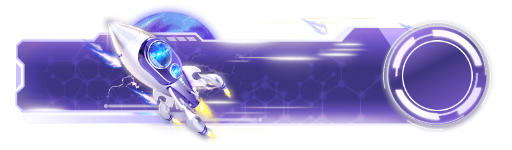
| Announce | Rocket Top 1 | 750×220 | 15 | 3 s | 301 KB |
| Reward | Rocket Box 1 | 690×160 | 20 | 4 s | 118 KB |
Small Level 1 to 5: the always-on icon
The meter icon stays on screen for the whole session, so it has to be light. Rocket Small Level 1 to 5 share a 128×128 canvas at 15 fps and 4 seconds, and weigh between 7.2 KB and 10 KB each, small enough to loop beside the room title all evening. Five steps give you a clear way to show which level the room has reached, and the icon is the natural tap target for a sheet that explains the rules.
Rocket 1 to 3: the launch
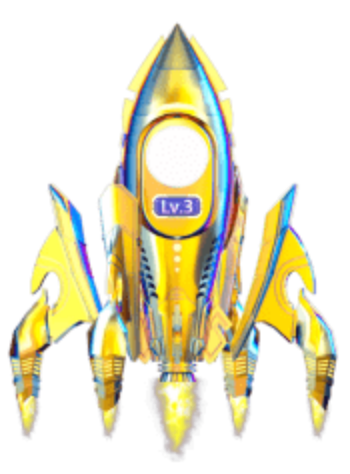
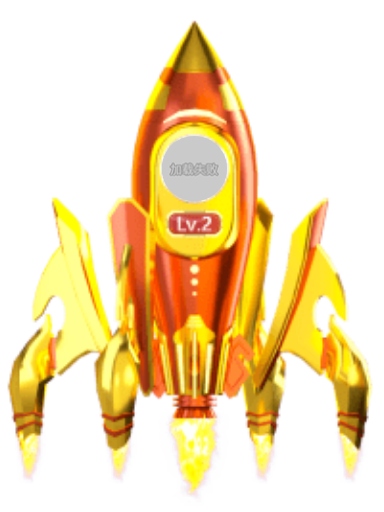
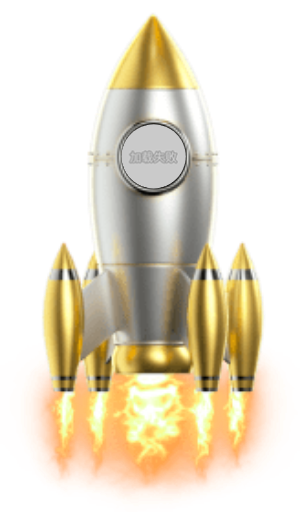
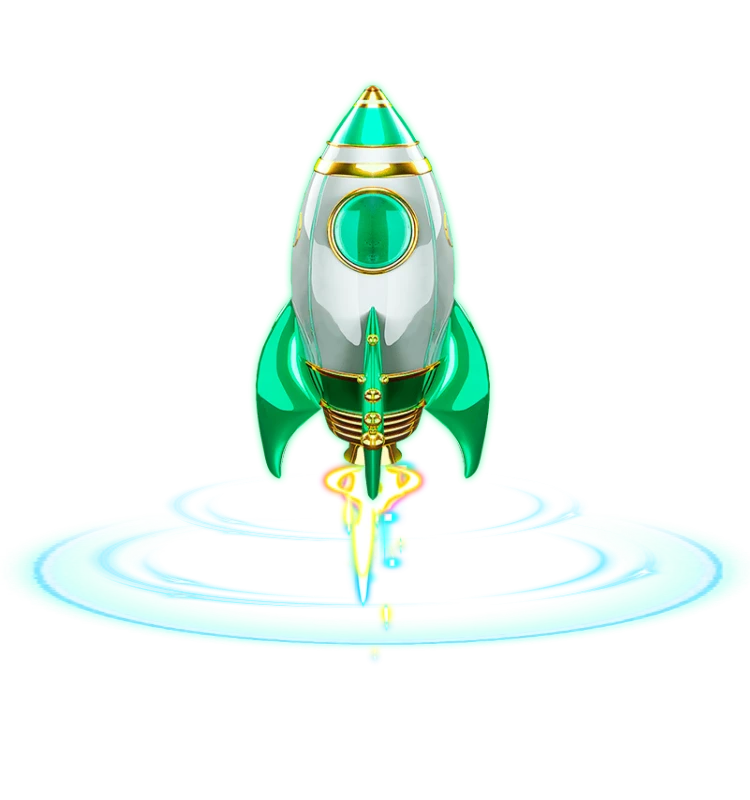
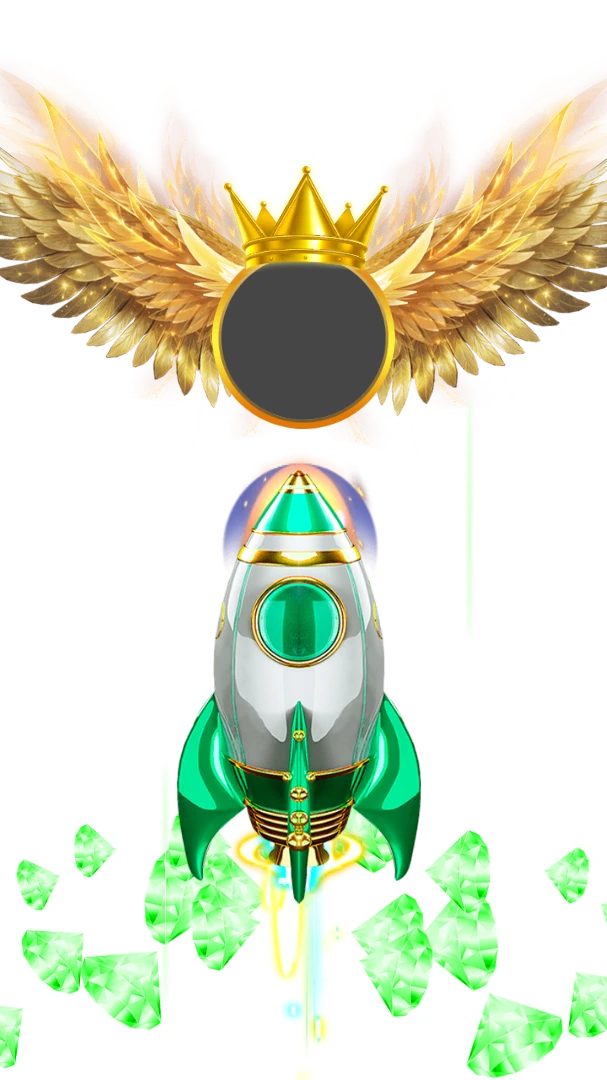
Rocket 1, 2 and 3 share a 200×267 canvas at 10 fps over 5 seconds, growing from 622 KB to 789 KB to 861 KB, so each level carries more image data. The II series is a separate set at 164×280 and 20 fps, between 1.41 MB and 1.51 MB. The trade-off is straightforward: the II set moves at twice the frame rate and costs more to download, so it suits apps that preload the launch while the meter is filling. Room Rocket, at 175×237, is a further launch option, and if the rocket is also a gift people can send, Room Limit Time Gift Rocket (130×130, 20 fps, 5 seconds, 47 KB) is sized for a gift-panel tile.
 200×267 · 5s
RocketsSVGA
Rocket 1
 200×267 · 5s
RocketsSVGA
Rocket 2
 200×267 · 5s
RocketsSVGA
Rocket 3
 164×280 · 5s
RocketsSVGA
Rocket 1 II
 164×280 · 5s
RocketsSVGA
Rocket 2 II
 164×280 · 5s
RocketsSVGA
Rocket 3 II
Top bars: telling everyone else
A launch is the moment a room wants noticed outside itself. Rocket Top 1 to 3 are 750×220 bars at 15 fps, 3 seconds long, from 301 KB to 373 KB. Each has an R variant, Rocket Top 1 R to 3 R, with the same canvas, frame rate and length and almost the same file size. Preview each pair side by side to confirm which way it runs before you map them to left-to-right and right-to-left layouts, so Arabic and Urdu rooms see a bar that reads naturally. Make the bar tappable: if it opens the launching room, people can still join while the boxes are there to claim.
Rocket boxes: the payoff
Rocket Box 1 and 2 are 690×160 at 20 fps for 4 seconds, weighing 118 KB and 120 KB. That wide, shallow canvas suits a reward strip across the lower part of the room better than a chest icon tucked in a corner. Follow it with a clear claim state and a rocket result animation so people know what they received.
 128×128 · 4s
RocketsSVGA
Rocket Small Level 1
 128×128 · 4s
RocketsSVGA
Rocket Small Level 5
 750×220 · 3s
RocketsSVGA
Rocket Top 1
 750×220 · 3s
RocketsSVGA
Rocket Top 1 RTL
 690×160 · 4s
Rocket SetsSVGA
Rocket Box 1
 690×160 · 4s
Rocket SetsSVGA
Rocket Box 2
Design notes that keep a rocket worth chasing
Make each level look earned. File sizes climb across Rocket 1 to 3, and the artwork should climb with them: if level 3 looks like level 1 in a different colour, nobody pushes for it.
Preload before the meter fills. The launch is the heaviest file in the sequence; fetch it while the room is still fuelling so the launch starts the moment it should.
Keep the launch brief. Every launch file in the table runs for 5 seconds, which is long enough to enjoy and short enough not to hide the mic seats people came to watch.
Use sound sparingly. Red Rocket Firework is a full-screen 750×1334 burst with a sound track, 4 seconds and 384 KB. Save something like it for the top level, and respect the room's mute setting.
Queue launches. If several rooms launch at once, queue the top bars instead of stacking them.
Plan for both directions. Any bar or box with text needs a right-to-left version for Arabic and Urdu rooms, with names drawn at runtime rather than baked in.
Next step
The Rocket Launch Pack brings 21 files together for less than buying them one by one, led by Rocket 1 to 3, the gift rocket and Small Lv 1 to 5. If rockets also mark VIP arrivals in your app, the VIP Arrivals Pack combines rockets, winged banners and entrances in 15 files. Before you write the event rules, drop the files into the viewer on the dark stage and walk through the beats in order, icon to launch to top bar to boxes, to check that each one reads clearly at phone size.
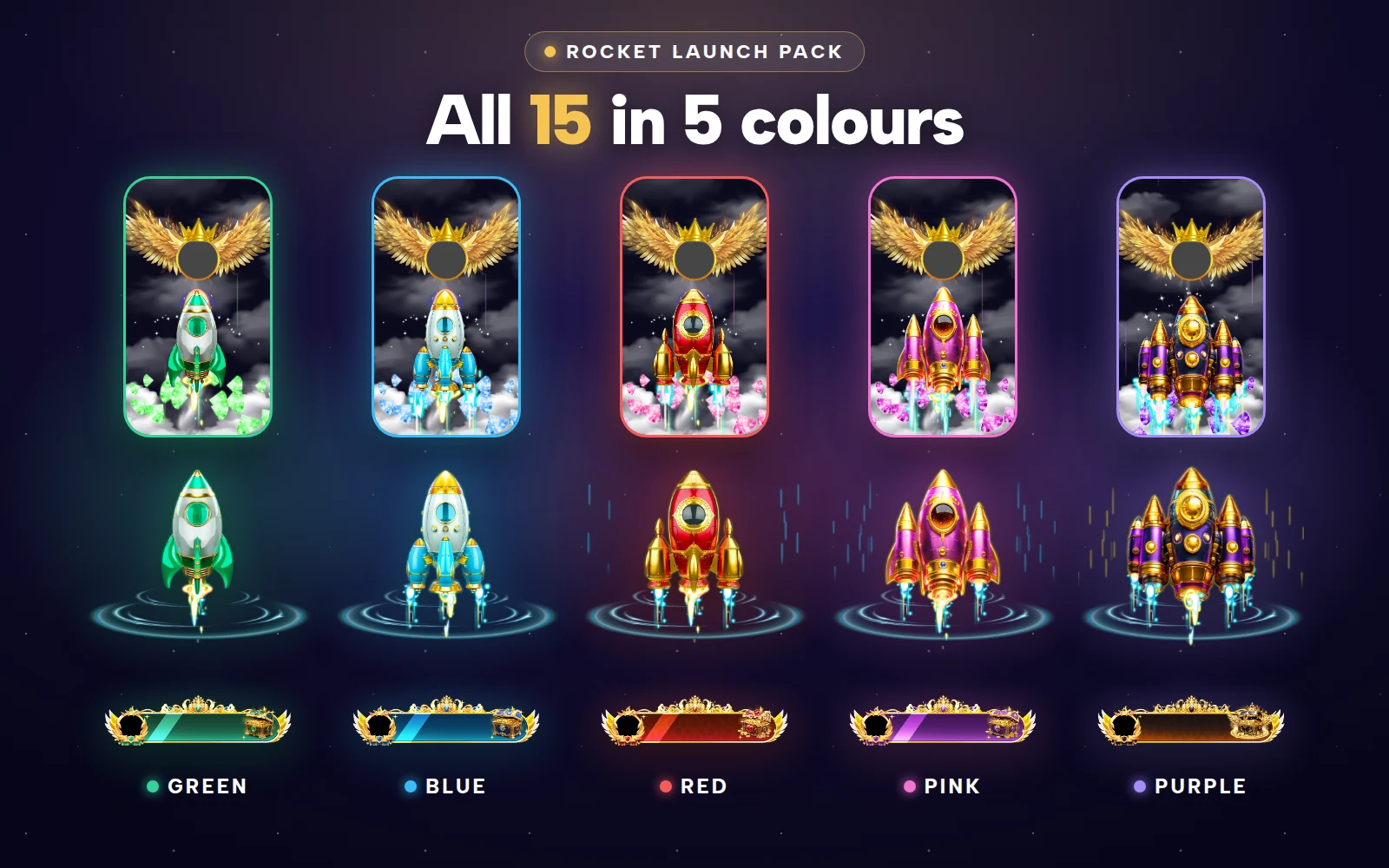
Rocket Launch Pack
Five colour-matched rocket sets: green, blue, red, pink and purple