Voice Chat Room Mic and Seat Animations (SVGA)
Speaking rings, seat states, mic links and DJ stages: how the smallest animations tell a voice room who is talking, with real frame rates and file sizes for each piece.
svgastore team5 min read

In a voice room the screen has surprisingly little to do. The conversation happens in people's ears, so the visual layer has one main job: show who is making the sound, who could be, and what the room is doing between voices. This guide walks through speaking indicators, seat states, mic moments and stages, with real specs from the store.
The speaking indicator is your most-played animation
A gift might play a few times an hour. A speaking ring plays every time someone on a seat talks, on every phone in the room, often on several seats at once. That frequency should shape every decision you make about it.
The Mic, Voice & Seats collection reflects this. It holds 155 files, 138 SVGA and 17 PAG, and its median file size is 2.4 KB, the smallest median of any collection in the store. Most of what lives there is meant to loop quietly around an avatar, not to fill the screen.
Three speaking-style loops, with their real specs:
| File | Canvas | FPS | Loop | Size |
|---|---|---|---|---|
| Mic Sound Effect Female | 336x336 | 12 | 3 s | 17 KB |
| Mic Sound Effect Male | 336x336 | 12 | 3 s | 16 KB |
| Music Wave | 420x420 | 20 | 2.5 s | 57 KB |
Note the frame rates. Twelve frames per second is plenty for a soft pulse that people see out of the corner of their eye, and it is half the work of a 24 fps loop. Save 30 fps for things people watch on purpose.
Rules for a speaking ring that behaves
Draw outside the face. The ring should frame the avatar, not cover it. Check the transparent centre against your real seat size before you commit.
Loop without a seam. If the first and last frames do not meet, the ring hiccups on every cycle.
Add a short hold. Drive the ring from your voice SDK's volume callback, but keep it running briefly after the level drops, or it will flicker on every pause between words.
Stop cleanly. When someone stops talking, finish the cycle or hide the view. A ring frozen mid-frame looks like a bug.
Offer a variant. Separate female and male styles, like the pair above, give users a choice without you building a colour picker.
 336×336 · 3s
MicSVGA
Mic Sound Effect Female
 336×336 · 3s
MicSVGA
Mic Sound Effect Male
 420×420 · 2.5s
MicSVGA
Music Wave
Seats have states, and each state can move
Treat a seat as a small state machine: empty, locked, occupied, speaking and muted, plus extras such as couple or VIP-only seats. The speaking state gets the ring; the rest usually need something quieter.
Empty seats can carry a gentle invitation instead of a grey circle. A seat-level piece such as Seat Voice Background is worth previewing for this job.
Occupied seats often show something about the person: an avatar frame, a VIP voice ring or a couple effect. Keep this layer below the speaking ring, so status never hides who is talking.
Muted seats should look still. If a muted user's VIP ring keeps pulsing, the room will assume they are speaking.
Agree the layer order with your designers early: background, frame, avatar, speaking ring, badges. Five layers across a full grid of seats is a lot of motion, so decide which layers can be static posters.
Mic moments: joining, linking and music
Between voices, rooms have small events that deserve a beat of motion.
Joining the mic. A short flourish when someone takes a seat, such as Room SVIP Join Mic, tells everyone the line-up has changed.
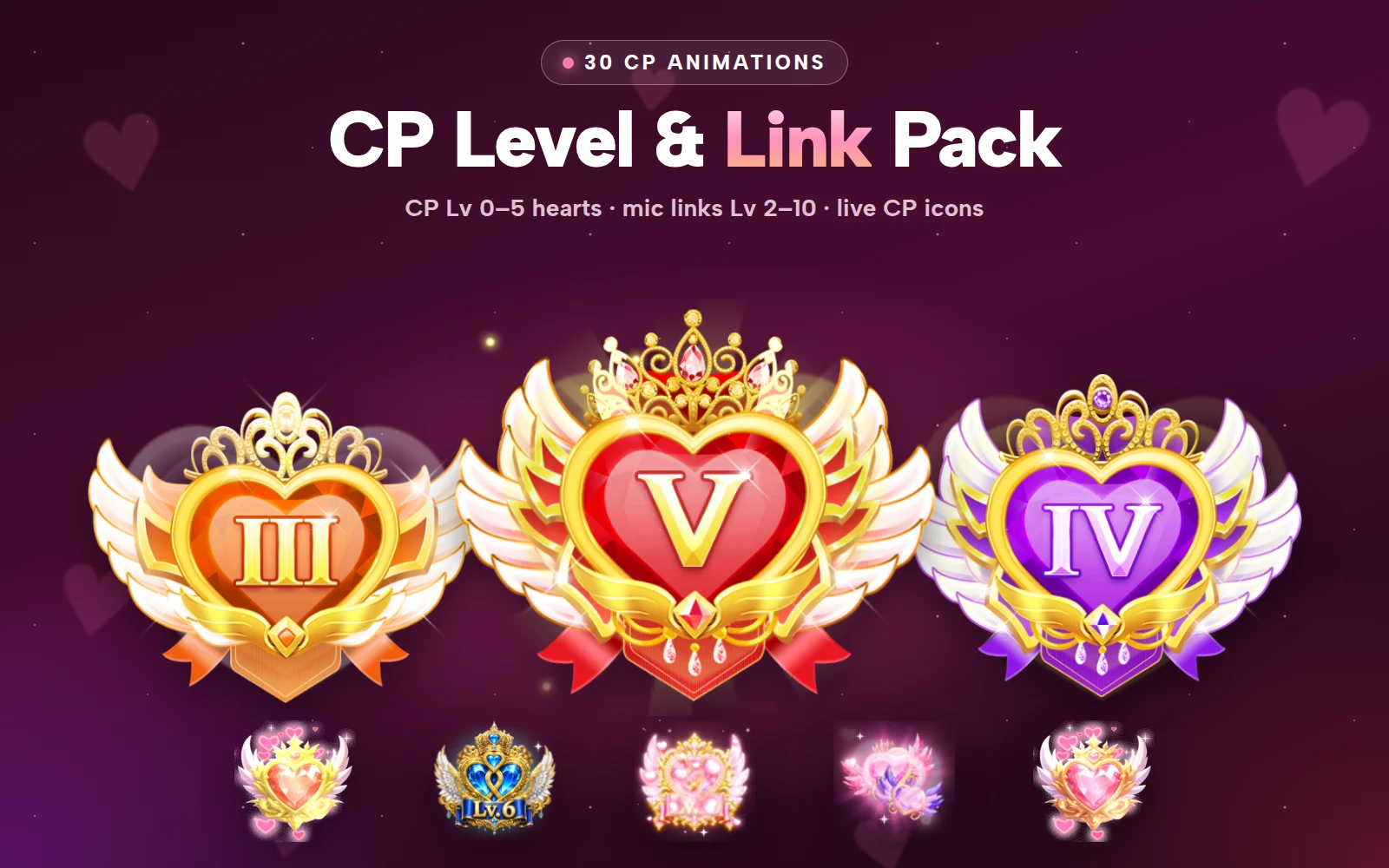
Linking seats. Relationship features often draw a link between two mics. The CP Level & Link Pack includes CP mic links from Lv 2 to Lv 10.
Music playing. Room Music Cd (120x120, 20 fps, 2 s, 84 KB) is a compact music-disc cue. Background Music Controller Enter (72x72, 15 fps, 1.8 s, 117 KB) suits the moment a music panel opens, and Party Music Entry is a PAG option at 134x130, 12 fps, 2 s and 17 KB.
Stages: when one seat becomes the show
Some rooms promote one person to a stage. That is where you can spend more on motion, because people are looking at it deliberately.
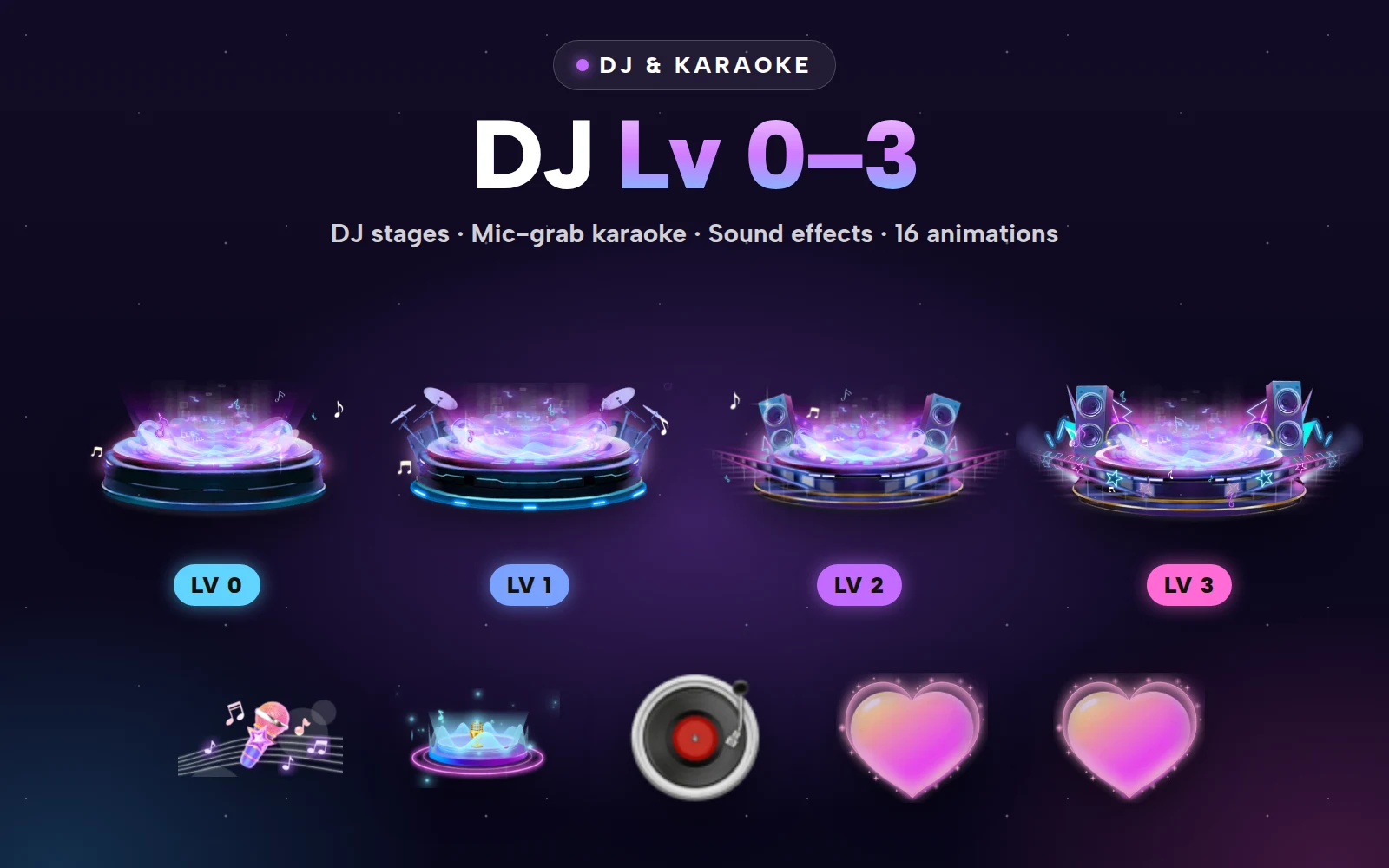
The four DJ stages share a 750x280 canvas, 30 fps and a 6-second loop, and their files grow with the level:
| Stage | Size |
|---|---|
| DJ Lv 0 | 127 KB |
| DJ Lv 1 | 202 KB |
| DJ Lv 2 | 204 KB |
| DJ Lv 3 | 320 KB |
For karaoke rounds, Mic Grab Singing Stage (300x206, 20 fps, 3 s) sits at the top of the collection's size range at 1.09 MB. Karaoke Panel Background runs a long 12-second loop at 680x426 and 444 KB, so it can sit behind lyrics without an obvious repeat, and Mic Grab Health Reduce (64x64, 0.8 s, 46 KB) handles a quick scoring beat. The DJ & Karaoke Pack bundles the DJ stages Lv 0-3 and the mic-grab set: 17 files for less than buying them one by one.
Budgeting for many loops at once
The risk in a voice room is rarely one big file. It is many small ones running together.
Parse once, play many. Load each seat animation once and share the parsed result across seat views where your runtime allows it, rather than reading the same file for every seat.
Pause what nobody can see. If a panel covers the seat grid, stop the players behind it.
Use posters for quiet states. An occupied but silent seat rarely needs a live animation.
Test on your real background. Drop each file into the SVGA & PAG Viewer and play it over a dark room background to check edge glow and the transparent centre.
The SVGA files play with the open-source SVGAPlayer runtimes on Android, iOS, Web and Flutter; the PAG pieces need Tencent's libpag.
Next step
Pick one speaking ring and one empty-seat treatment, test both in the viewer at your real seat size, then wire the ring to your voice-activity callback with a short hold. If you would rather start from a set, Mic and Seat Effects collects seat frames, speaking rings and voice waves: 15 files for less than buying them separately.